
Appearance
Build and customize the RPG interface
The Emberfall revision separates a third-person encounter from the RTS. Its camera and tiny combat adapter live in ForgeExamples. The UI core knows screens, commands, models, themes, input presentation and entry lifecycles; it does not implement an MMO, inventory or character controller.
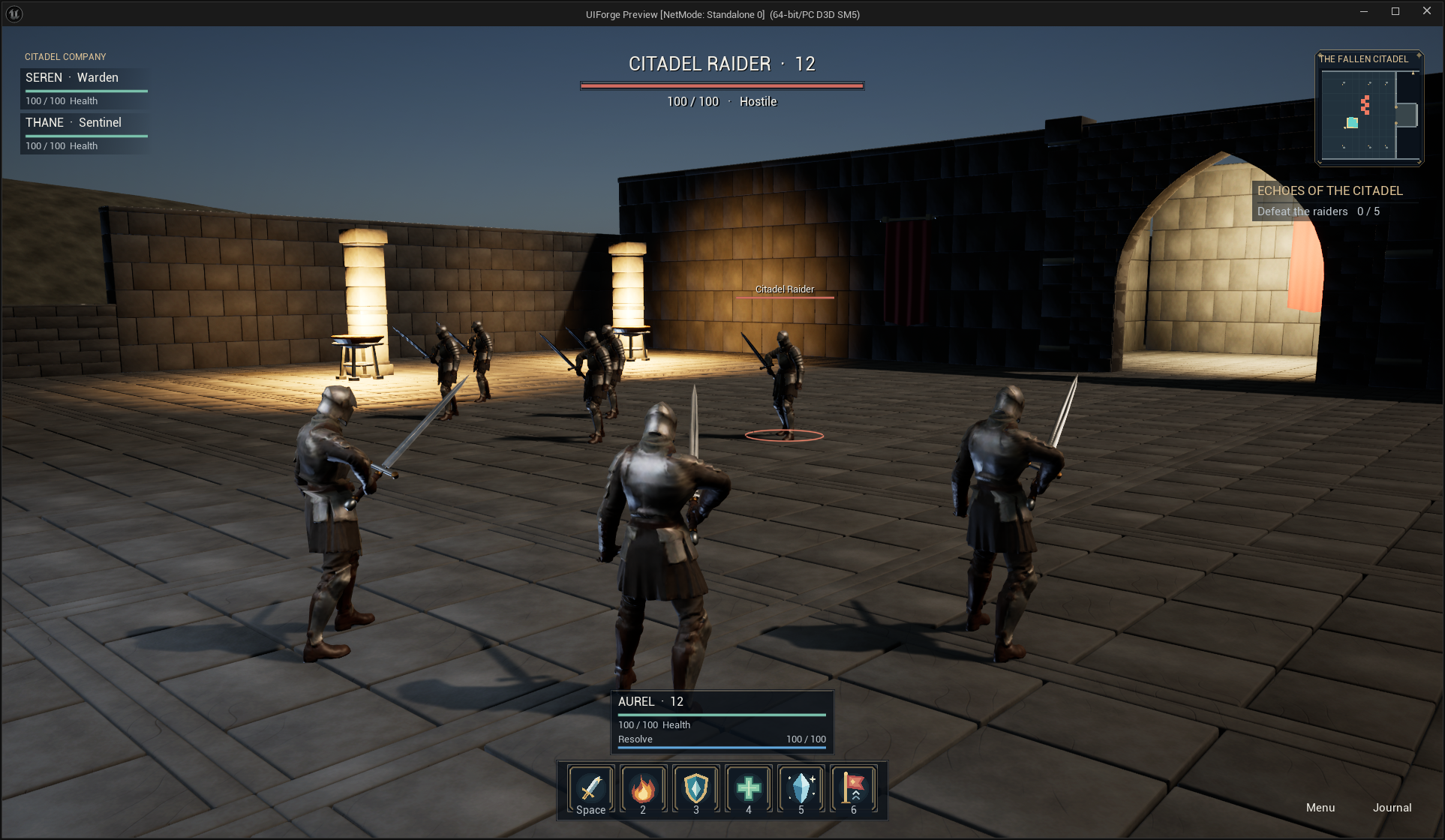
Open the usable example
In UE5.8.3 open /Game/ForgeExamples/Maps/Emberfall, Play and choose Begin a new journey. New does not overwrite the existing chronicle; Save does. The current Enhanced Input profile determines your keys. Read the action-bar prompts or open Menu → Settings → Controls rather than assuming the defaults still apply.
Default keyboard actions are1–6, Tab to cycle targets and WASD movement. Hold right mouse to orbit and wheel to zoom. The example uses camera-relative movement. Menus and modals take ownership away from movement/look. In PIE, UIForge offers the configured Back action to the active player's CommonUI router before Unreal's Stop Play shortcut. The editor toolbar remains available to stop play; global editor bindings are unchanged. A key selector keeps its release event so Escape cancels capture first.
The visible scene is a small local encounter with a plane-constrained movement adapter. It is not a replacement for Character Movement, jumping, world traversal or multiplayer gameplay in your game.
The editable assets
All paths below are beneath /Game/ForgeExamples/UI/RPG/.
| Asset | Developer edits |
|---|---|
| WBP_IFRPGHUD | IFScreen class defaults: Input Policy, Shortcuts, Gameplay Key Mappings, focus and Back Action Name |
| WBP_IFRPGLayout / DA_IFRPGLayout | Designer region widgets and data-asset anchors, sizes, offsets and compact behavior |
| WBP_IFRPGTarget | Name, linear health bar and target details at the top center |
| WBP_IFRPGVital / WBP_IFRPGParty | Compact player/resources and interactive party entries |
| WBP_IFRPGAbility | Slot artwork, icon, center-origin cooldown, readable counter and live applied-key prompt |
| WBP_IFRPGMain / WBP_IFRPGPause / WBP_IFRPGJournal | Ordinary editable Widget Blueprints for the usable windows |
| WBP_IFRPGSettings | Four-tab IFSettingsMenu; rows remain the public settings/binding controls |
| DA_IFEmberglass | Fonts, palette, audio, transition settings, surface brushes and default/dialog style keys |
| BP_IFRPGCamera | Example-only spring-arm distance, lens, sensitivity, invert and follow settings |
The RPG map uses original cartographic geometry from the actual courtyard. In the example adapter, RPG Map World Min / Max match the artwork: XY min(-2600,-2400), max(2600,3600). U increases with world Y and V with negative X. The RPG does not draw an RTS camera-frustum rectangle. Change the material/texture and bounds together for your own level; live markers remain ordinary IFMapData.
The RPG defaults place the target at top center, player resources above the bottom action strip, party at the upper left and map/objectives at the upper right. They are a layout profile, not a requirement imposed on other games. RTS keeps its separate army interface.
Make your own skill entry in Blueprint
- Create Widget Blueprint, choose IFReadoutEntry as its parent and name it WBP_MySkill.
- In Designer add a64×70 Size Box containing a Canvas Panel. Add IFCommandButton named
EntryCommand, Image namedIconImage, IFCenterTint namedCooldownTint, a Text Block namedDetailText, and IFActionPrompt namedActionPrompt. Use a54px icon/tint inside the64px slot; keep decorations hit-test invisible. - Set the prompt's Label Font Size and disable Wrap Label for a keycap. A Designer Scale Box with Down Only fits a long applied key on one line. Do not hardcode a number into a Text Block: the prompt listens to Enhanced Input settings/profile changes and CommonInput device changes.
- On the entry instance set Model Name, Entry Action Name, Mapping Name and Tooltip Model Name. For the existing second skill these are Ability2, Ability2, IF_Ability2 and Ability2Tooltip. Enable Detail Only When Fraction Active.
- Add the entry to your own HUD, or call Get Region Widget / Set Region Widget on an IFHUDLayout to replace a region. To use the existing bar, replace the ability entry classes in its Designer row. No plugin source change is required.
- Supply a presentation model through IFDataSource → Get UI Model. Update Title, Detail, Icon, Enabled and Unavailable Reason together, then call Notify Data Changed. For a running fraction use Set Fraction. The framework displays the model; your game validates and executes Request UI Action.
Expected result: the same Blueprint entry responds to your model, click, focus, tooltip, applied key and controller presentation. For fully custom data, implement IFEntry's Initialize Entry, Refresh Entry, Set Entry Selected and Release Entry in your Widget Blueprint. Clear subscriptions and temporary state on Release; see entry decisions.
Make keyboard actions work while the HUD has focus
Register your player-mappable Input Mapping Context with Enhanced Input User Settings, and add the context to the local player's Enhanced Input subsystem. Enable Enhanced Input user settings as shown in installation.
In the HUD's IFScreen → Shortcuts array, add a Mapping Name / Action Name pair for each UI-routed game command, for example IF_Ability2 → Ability2. The screen resolves the applied engine key and calls the data source's Request UI Action. Shortcuts only operate on the active top screen, stop during transitions, and avoid editable text/key selectors.
For continuous movement, put the registered mapping names in Gameplay Key Mappings and the appropriate stick keys in Gameplay Analog Keys. The HUD forwards those inputs to the game while preventing widget navigation from stealing them. The RPG HUD also includes IF_Pause in this array and in Shortcuts, so its applied pause command works with viewport or widget focus. Leave gameplay forwarding empty on settings and other menus; CommonUI owns their Back behavior. Keep mouse capture at Capture During Mouse Down for this mixed HUD: Unreal's scene viewport otherwise skips initial left clicks when only right-button capture is allowed.
A Game And UI HUD with Show Keyboard Navigation Focus disabled returns focus to the viewport after transitions in pointer/keyboard presentation. Focused text/key editors keep their focus. Menus retain their normal CommonUI navigation focus.
Your game's Enhanced Input actions remain its gameplay path when the viewport owns focus. Avoid a second hardcoded key array. Normal Blueprint users edit IFScreen class defaults in the editor; the offline example generator must recompile after changing class defaults so UMG's generated instance template agrees with the CDO.
Build the rebinding settings tab
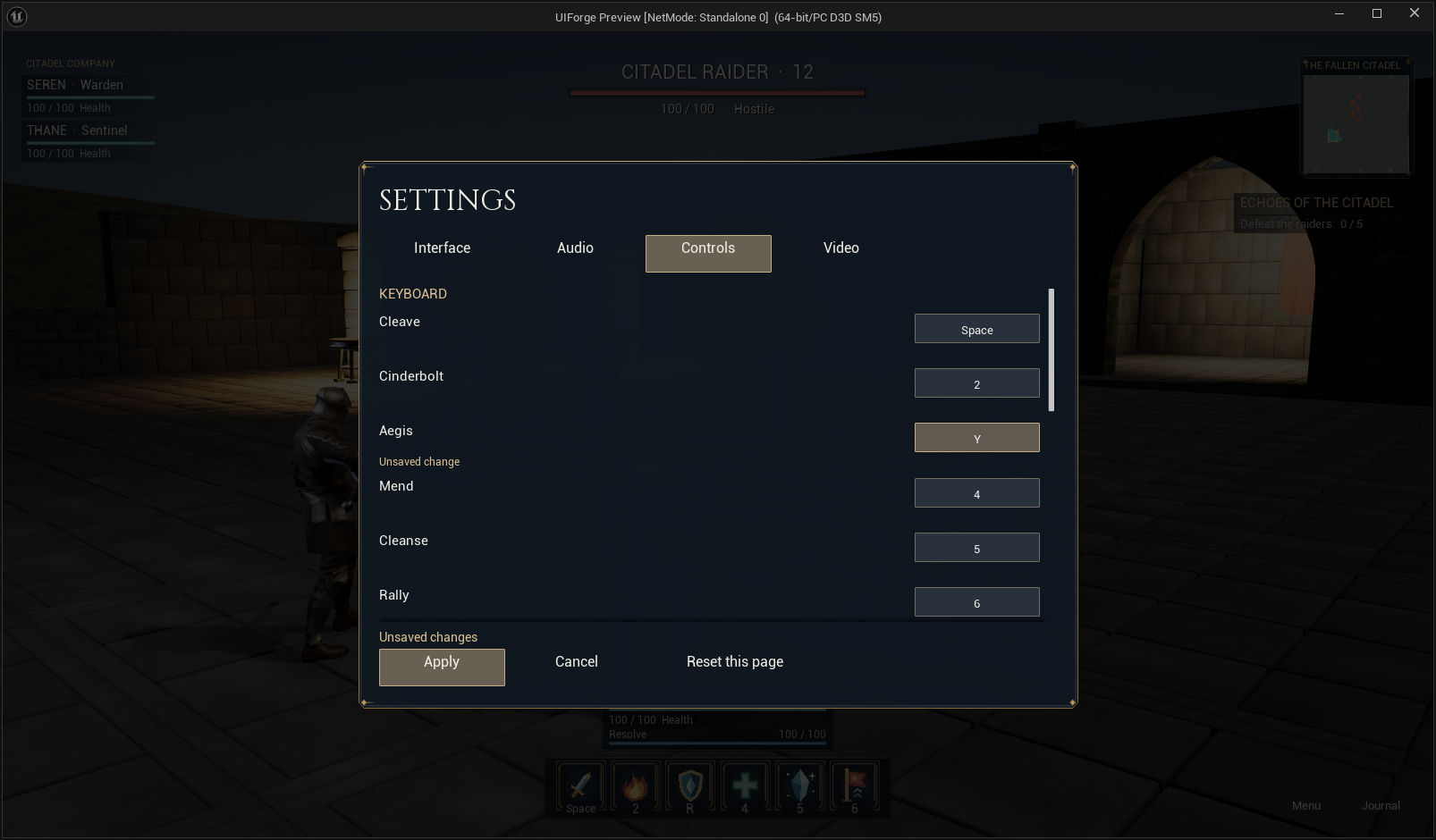
Use the detailed settings composition tutorial. Place IFBindingEntry rows in the Controls page, set Mapping Name and input Family, and use an Input Key Selector named KeySelector inside your row Blueprint. IFSettingsMenu creates one editing session for preferences and bindings.
- Choosing a key stages it. Cancel Settings discards the draft; gameplay stays on the old key.
- Apply Settings validates conflicts, writes the Enhanced Input profile, rebuilds control mappings and refreshes prompts. Test the new key and the old one.
- Restore Page Defaults stages defaults for Controls; Apply commits them. Reserved navigation keys and conflicts produce a reason instead of silently overriding another action.
- The ready-made first-slot workflow is Begin Edit → Stage Registered Key → Validate Pending → Apply on IFRemappingSubsystem. Resolve registered rows rather than inventing hardware identifiers. Advanced context-aware conflict policies are configurable; analog axes, modifier chords and arbitrary new mapping slots are outside this digital-key editor's current contract.
Restyle without duplicating the behavior
On DA_IFEmberglass edit Surface Styles: Window is the etched major-window brush, Inset is the smaller framed treatment, and Combat is the quieter HUD/row surface. Set Default Surface Style and Dialog Surface Style, or select Surface Style on an individual IFSurface. Brushes may use your own texture/material and nine-slice margin. Other themes can omit these keys and retain the procedural fallback.
Change Heading Font / Body Font independently. The example uses unmodified Cinzel for major headings and the regular engine body face for combat labels. The font's SIL OFL notice is included with the example. Editable frame/slot paths and deterministic raster sources are in ContentSource/UI/Emberglass; the core does not depend on them. Replace the atlas/Icon Image or UV rectangle to supply your own icons.
The cooldown remains IFCenterTint over the icon, using the same center-origin interior material and Percent/Color/RemainingTimeOpacity/PassedTimeOpacity/StartAngle/Reverse controls. It is not the health-bar renderer. See center-origin tint and progress variants.
Verification scope
Current evidence is recorded in the product verification record. The revision includes actual settings-session rebinding, native key selection/Apply/activation, old/new movement checks and profile reload. Controller presentation tests use software Slate events; physical controller, unplug and touch testing remain user-deferred. Do not treat those software tests as hardware certification or these local examples as network-ready gameplay.
Shared window and ability presentation
The current revision uses the public skin system for Window/Header/Row/Combat surfaces, role buttons, art-based Linear resources and theme variants. It preserves the separate IFCenterTint cooldown path. WBP_IFRPGAbilityBook is an ordinary IFScreen populated by the same six stable skill models as the hotbar; the full Blueprint recipe explains creating/replacing its cards and gameplay adapter. Load, settings, journal, ability browser and confirmation dialogs share the same header/action conventions. Bottom HUD shortcuts use Auto Height so enlarged labels grow upward from their bottom anchors.